
macOS menu bar · Disk cleanup

Deep scan. Review. Clean up safely.

Scan caches, temporary files, developer-tool caches, project artifacts, app leftovers, installers, archives and large files. Results are grouped into cache cleanup, project cleanup, app leftovers and storage analysis. Every item shows its path and size. Nothing is cleaned up until you confirm.

App preview

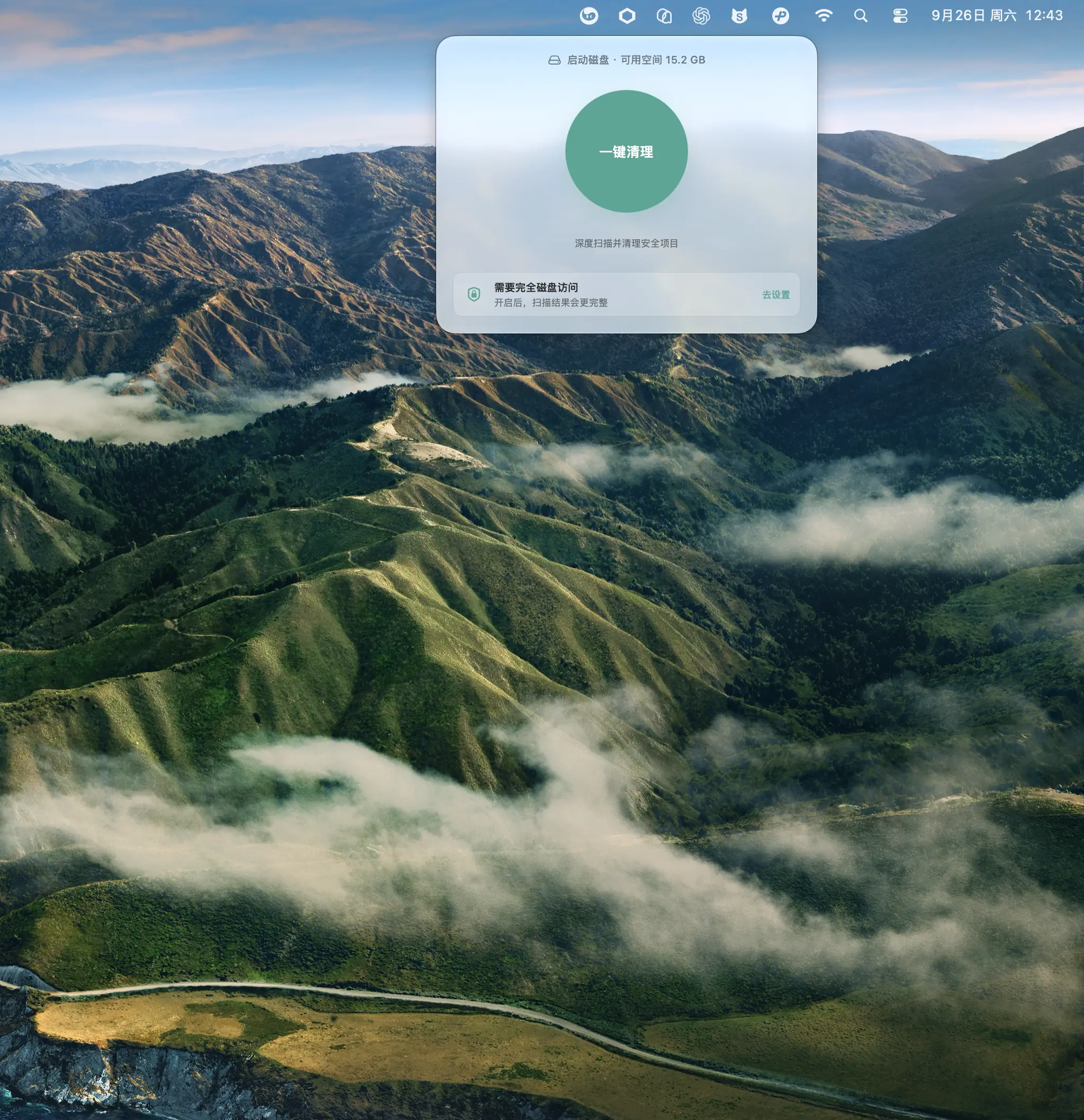
CleanU menu bar panel before a scan
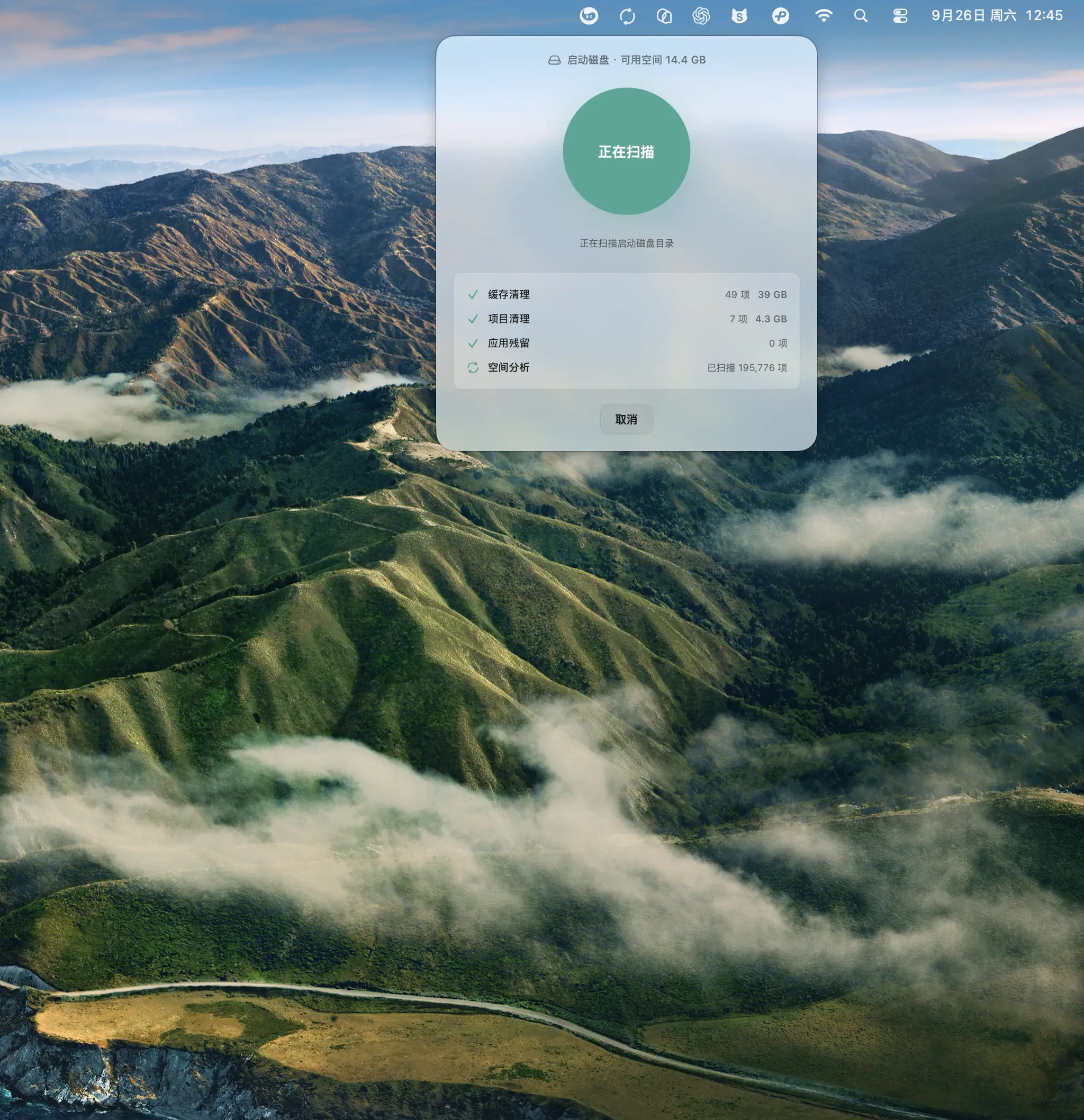
CleanU scanning for cleanable items
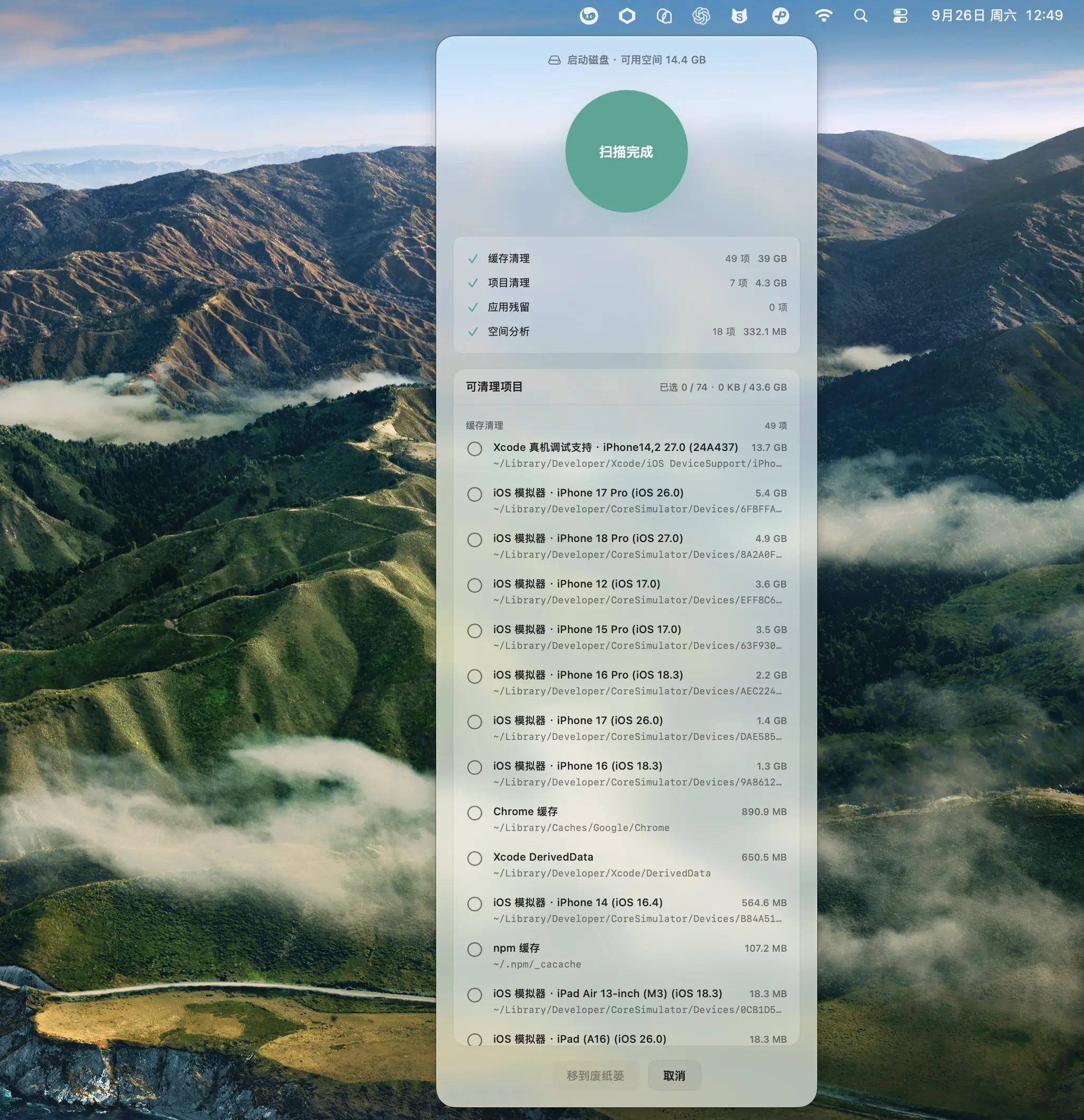
CleanU scan results ready for review
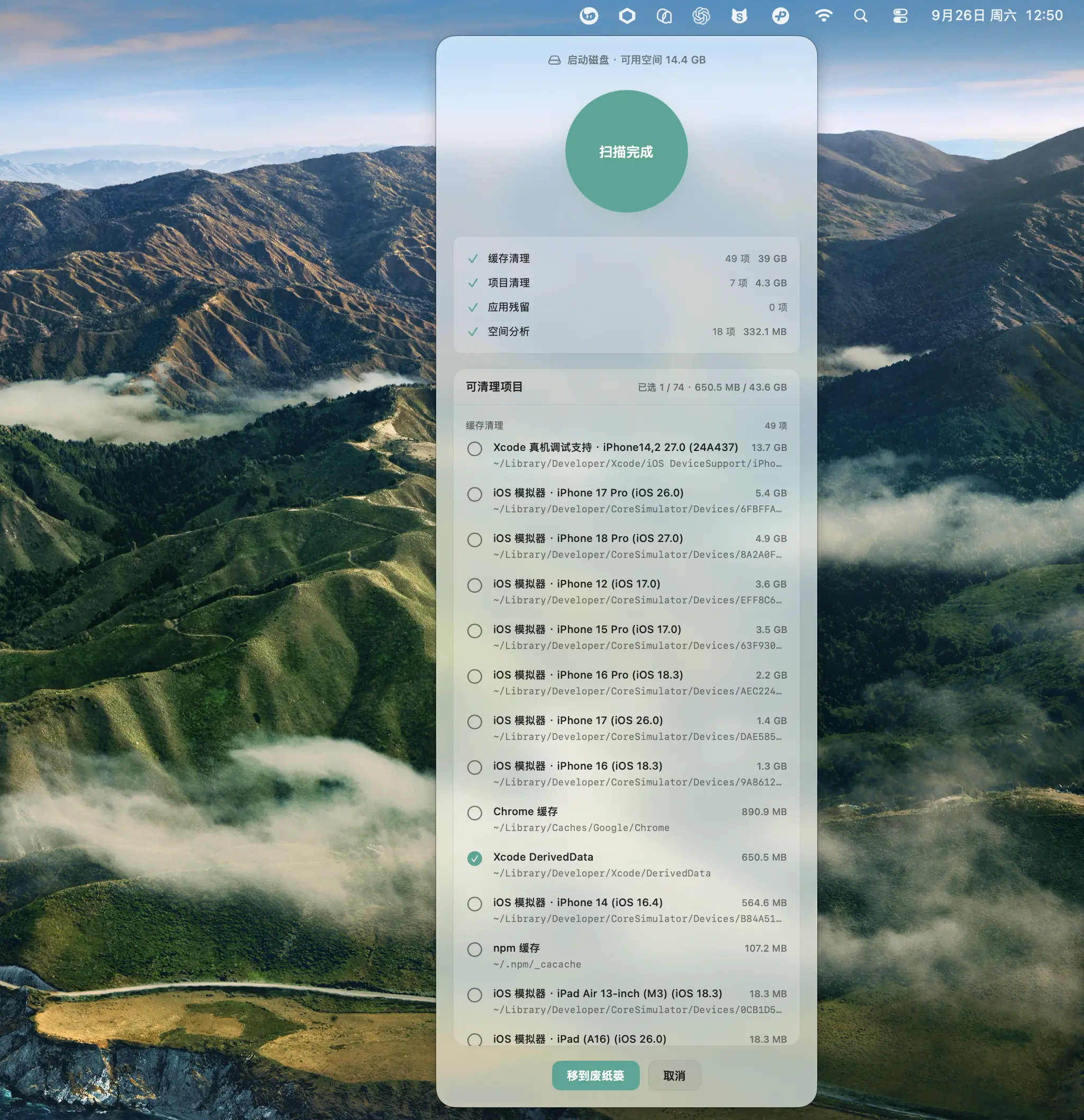
CleanU scan results with items selected
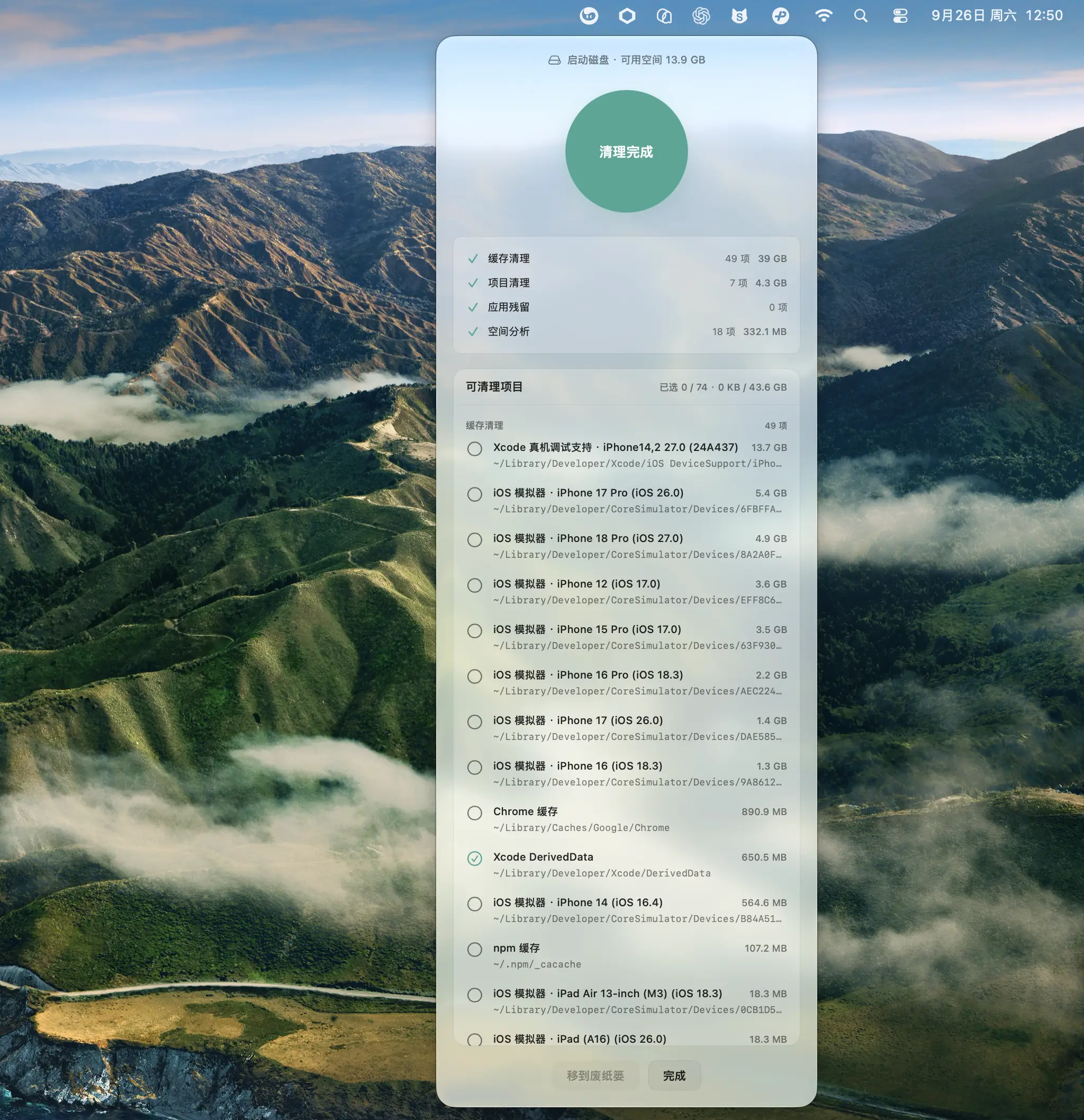
CleanU after cleanup completes

Features

One scan brings cleanable items and startup disk usage into one view.

01One complete scan

One deep scan brings results together in a single panel. Each entry shows its item count and size, with caches, projects and leftovers listed separately.

Typical entries include iOS Simulators, Xcode iOS Device Support, DerivedData, and npm and Homebrew caches.

02Read-only scanning

Scanning only reads: nothing is written or moved, and you can cancel at any time. For more complete results, use the settings link in the prompt to enable Full Disk Access.

Scanning is limited to paths the current user can read. No administrator password is needed.

03Review before you decide

Every item shows its full path and actual size. Select or deselect items individually, then confirm by choosing Move to Trash.

Start a deep scan with One-click Cleanup → review each item → confirm with Move to Trash.

Safety

Five boundaries define what CleanU can do on your Mac.

  1. Scanning is read-only

    Scanning reads only directories and file attributes. It never writes, moves or deletes anything.

  2. Explicit confirmation

    Candidates are processed only after you explicitly confirm. There is no automatic background cleanup.

  3. Re-checked before cleanup

    Candidates are checked again before cleanup. Any item whose path or size no longer matches is excluded.

  4. Files go to the Trash

    Confirmed files go to the Trash and can be put back. Time Machine snapshots are handled separately using the system's thinning mechanism, not the Trash.

  5. No elevated permissions

    CleanU runs with the current user's permissions and never asks for an administrator password. Unreadable paths do not appear in the results.

FAQ

System Settings shows storage by category. You can see broad areas of usage, but individual cleanup options are limited. CleanU lists eight sources—caches, temporary files, developer-tool caches, project artifacts, app leftovers, installers, archives and large files—with full paths and sizes. Items move to the Trash only after you select and confirm them.

Without this permission, macOS blocks some directories, so results may be incomplete and some sources may appear empty. Full Disk Access lets CleanU read caches and artifacts in those locations. Scanning remains read-only, runs with your current user's permissions and never needs an administrator password.

Cleanup happens only after you explicitly confirm items you have selected. Candidates are checked again, and mismatches are excluded. Files move to the Trash rather than being permanently deleted, so you can put them back. If you remove project artifacts such as node_modules, you will need to reinstall the project's dependencies before running it again.

Scanning, reviewing and cleanup are local file operations on your Mac. Every row corresponds to a real local path, and Time Machine snapshots are read locally too. Cleaned files go to your Mac's Trash; snapshots are the exception and are thinned using the system's mechanism.